
This guide explains how to reset your password using the official IF self-service portal.
IF Password reset website
Open a browser and go to IF password reset portal.
You will see the IF password reset page and can then follow the prompts to start the reset process.
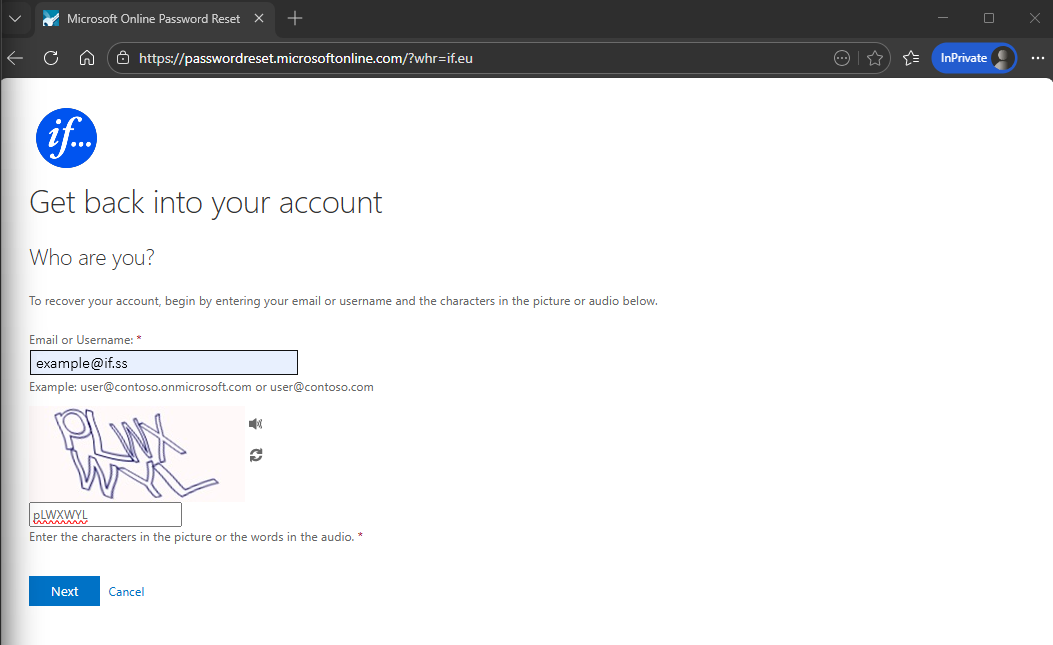
Step 1: Enter your username/email and characters
Type your If email or username and verification characters shown on the screen.
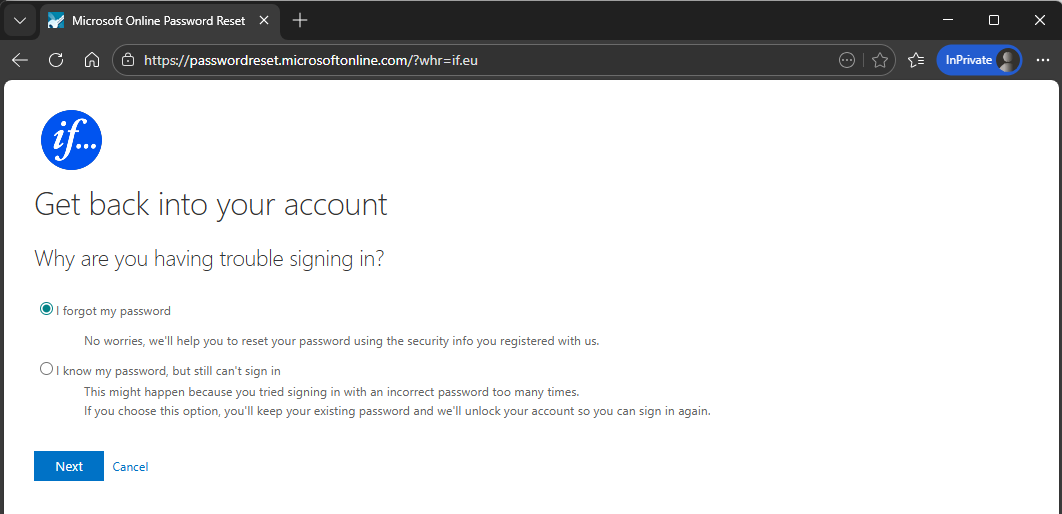
Step 2: Select password reset
Choose the first option "I forgot my password" for password reset.
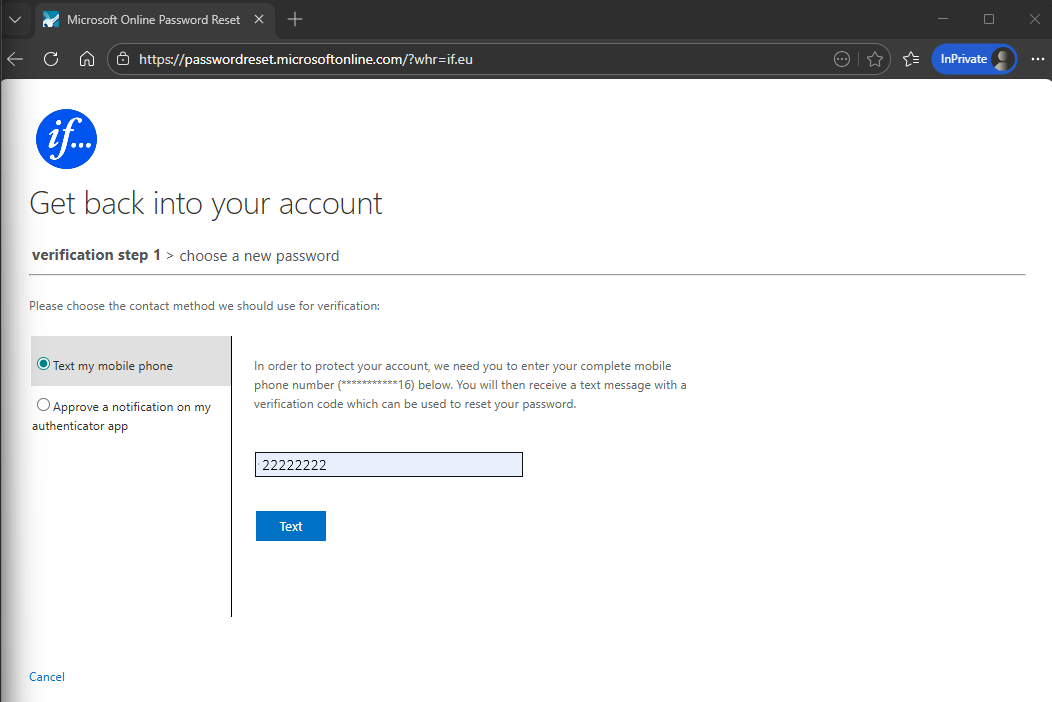
Step 3: Choose verification method
Select how you want to receive the verification code. The most common method is to receive a text message on your phone, but you may have other options depending on how your account is set up.
If you have chosen a "Text my mobile phone" enter your phone number and press "Text".
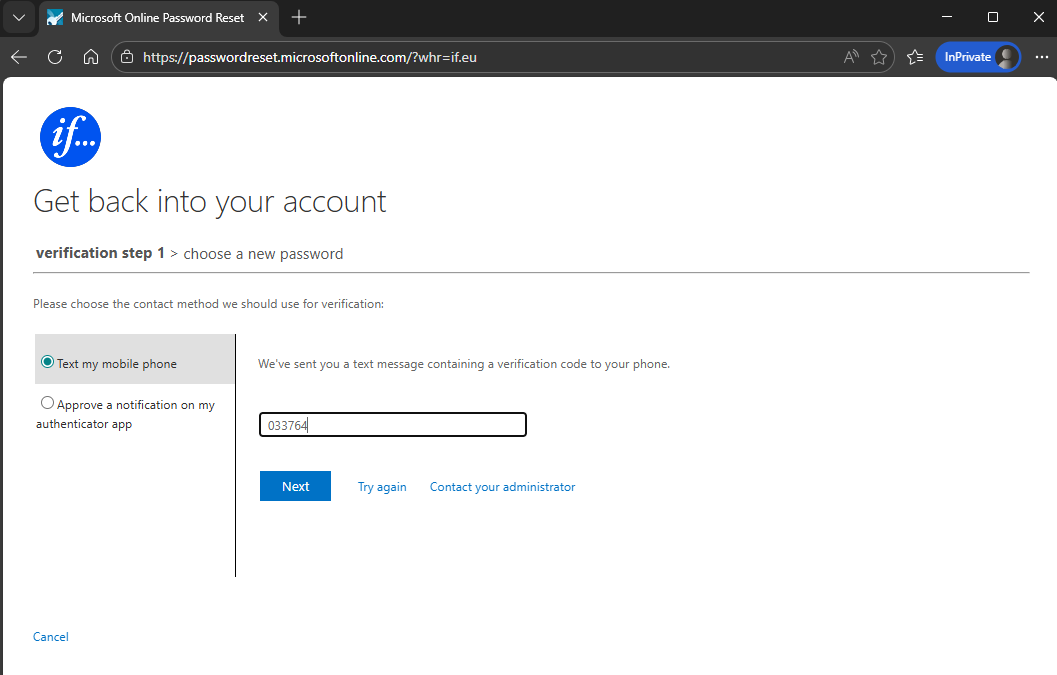
Step 4: Enter the SMS code
Check your phone for the SMS code.
Enter the code on the screen and press "Next".
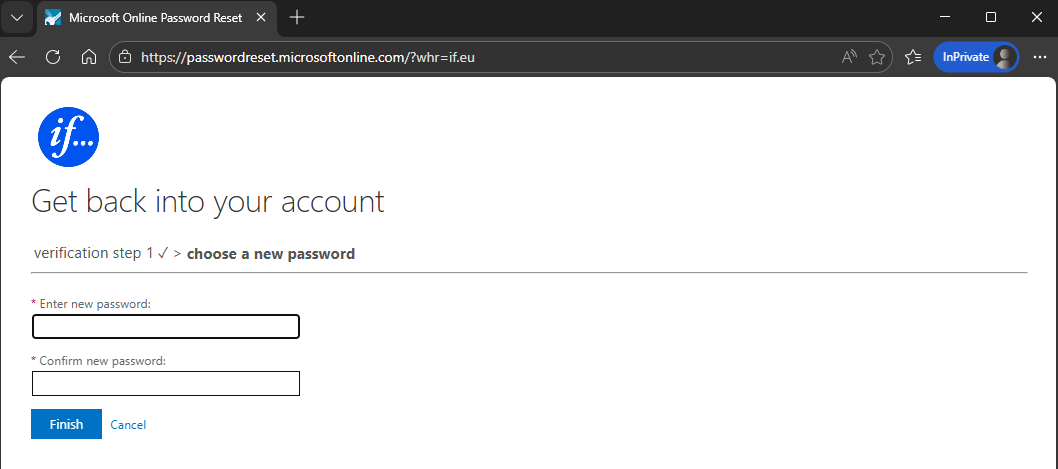
Step 5: Create a new password
Enter your new password twice to confirm it. Make sure it meets the IF password requirements.
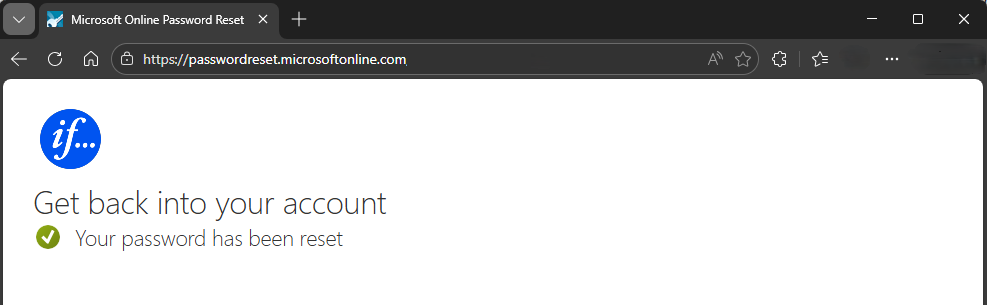
Step 6: Confirm success
Once the reset is complete, you will see a success confirmation screen.
Note: Restart your computer after the password reset is confirmed so the new credentials are applied to Windows and your apps.
Step-by-step reset
- Enter your work email address and the verification characters, then press Next.
- Select the password reset option and press Next.
- Choose a verification method and continue.
- Enter the SMS code sent to your phone.
- Create your new password and confirm it.
- Restart your computer after the password reset is confirmed so the new credentials are applied to Windows and your apps.